Body
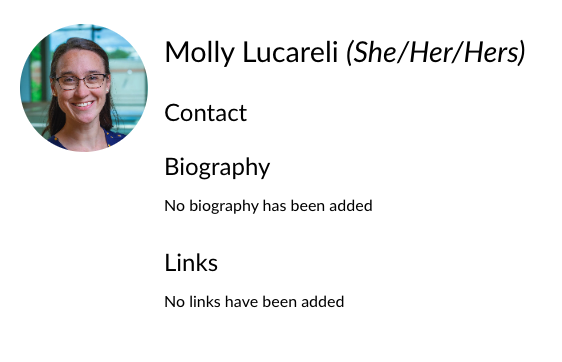
Your profile picture in Canvas is a simple way to personalize your account and make your presence more recognizable in courses, discussions, and messages. Whether you're a student or an instructor, adding a profile photo helps build a sense of connection and community in online learning environments.
1. Navigate to "Account" on your Canvas dashboard.

2. Click on "Profile".
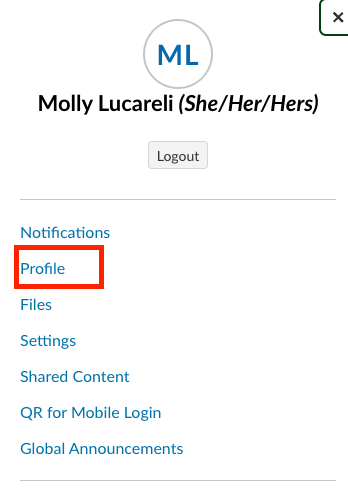
3. A placeholder image will appear. Hover your mouse over it to make the pencil appear and click on it.

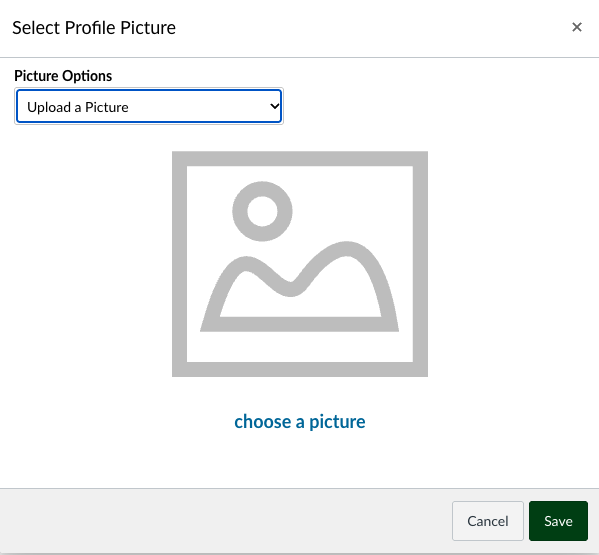
4. You can choose to Upload a Picture, Take a picture (using your webcam), or use a Gravatar (automatically generated geometric image).
 .
. 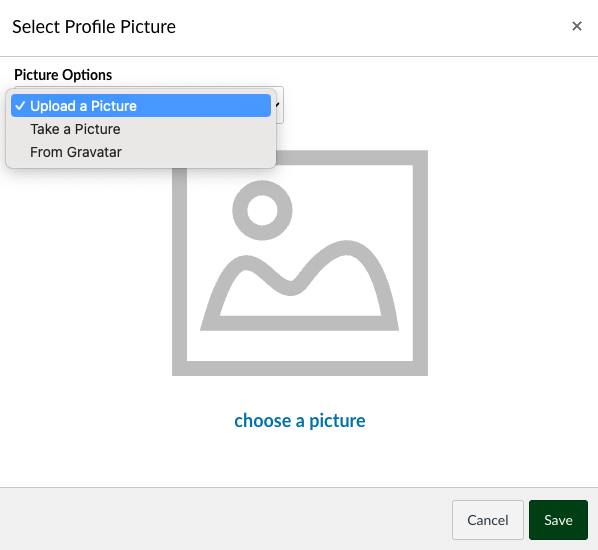
If uploading, your file manager will open for you to select a file. If taking a picture, a camera will appear to take the picture. If choosing a Gravatar, the image will be created.
5. Once the image has loaded, you can edit the portion that will show up on Canvas. Drag the circle and/or resize the box to your liking, then press save.
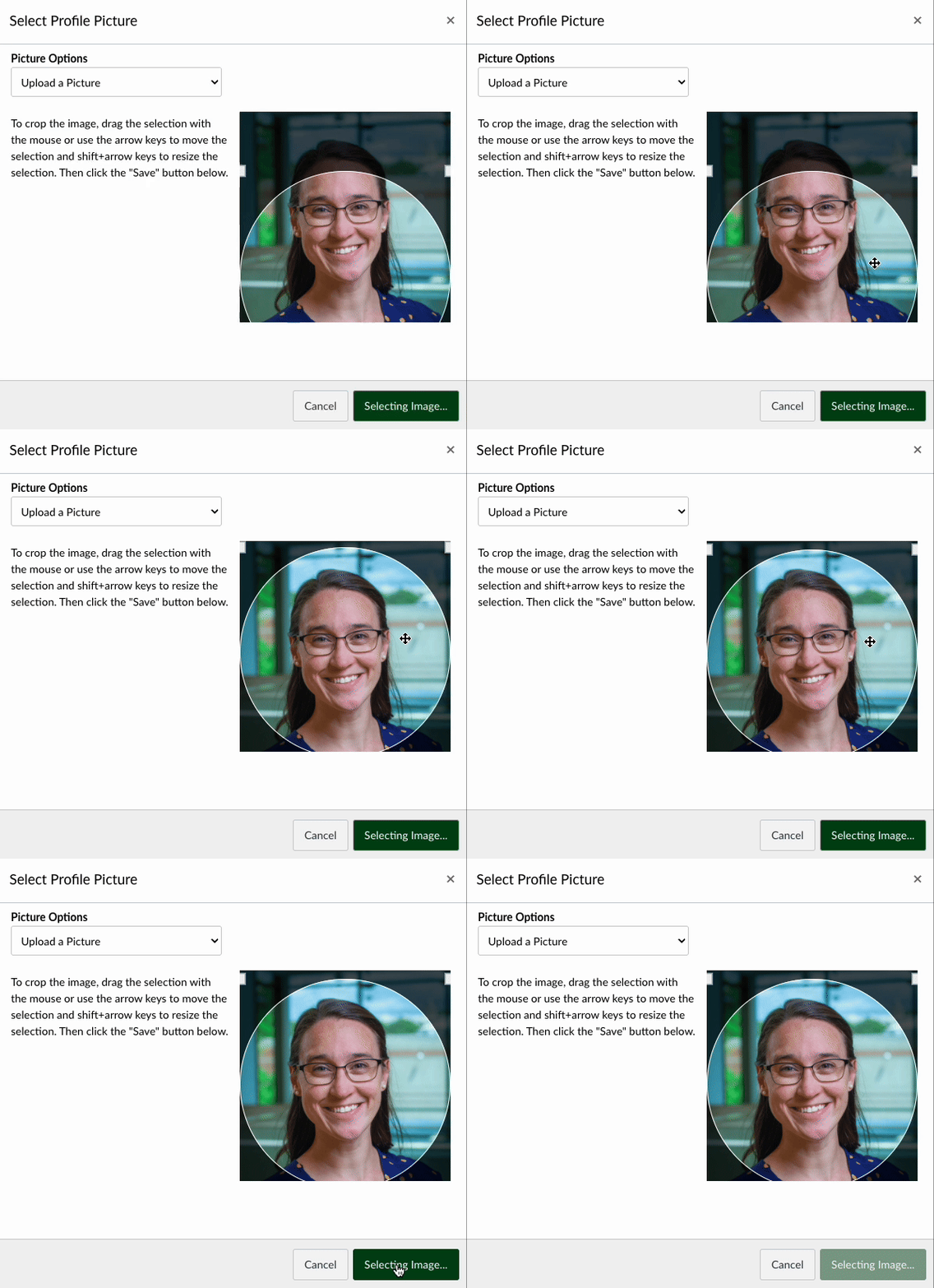
Your image will be saved as your profile picture.